
Appearance
Image with text
A two-column row pairing one image with a heading, copy, and buttons. Use it to explain a product line, tell a brand story, or break up a long page with a visual.
Add it under Add section → Image with text. Set the image at the section level; add the copy as blocks. The section takes up to six blocks in total.
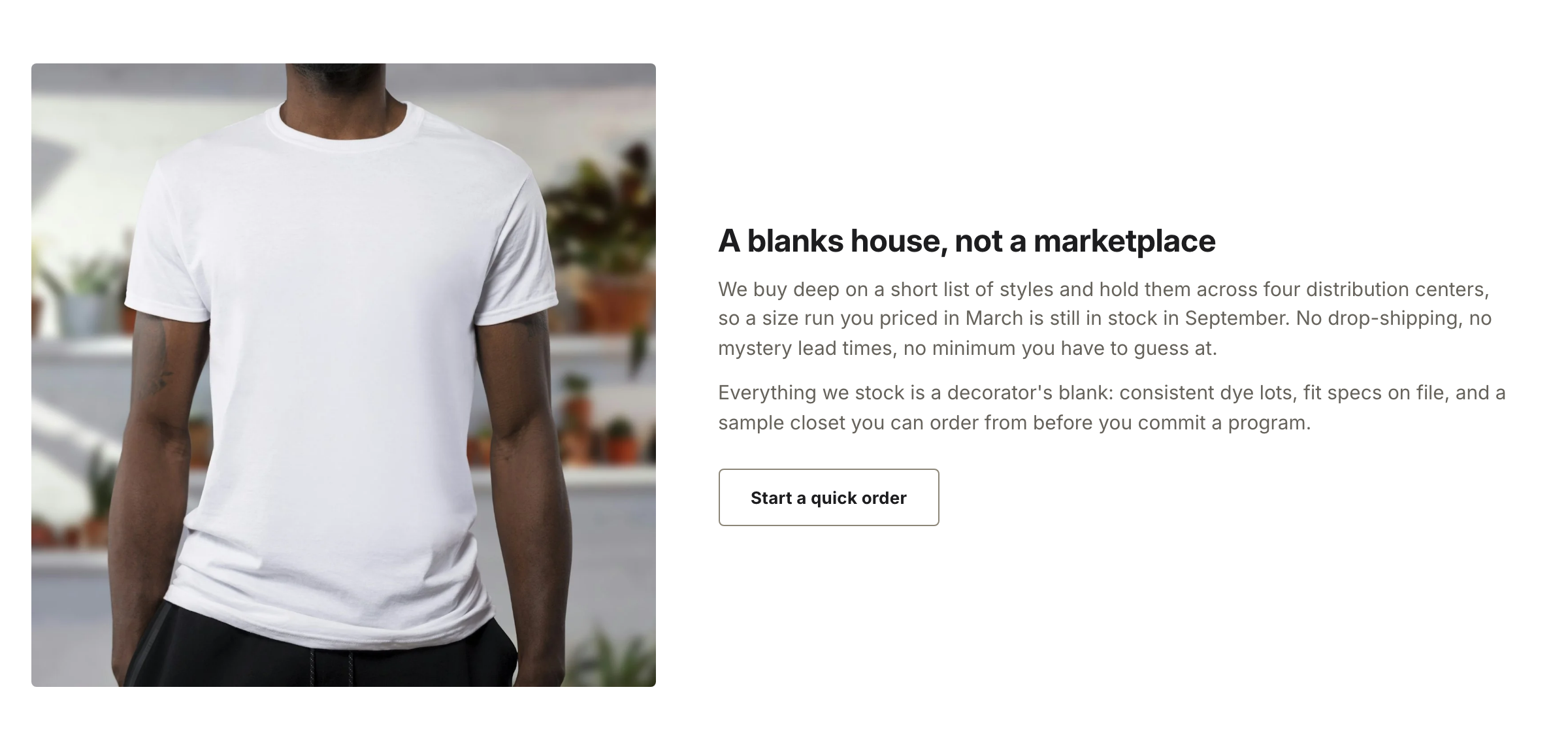
One Heading, one Text, and one Button block beside a section-level image.
Content blocks
- Heading — one per section.
- Text — a rich-text field with links and formatting.
- Button — a Button label, Button link, and Button style (Solid or Outline). Up to two.
Image and layout
- Set the Image. Leave it blank and the column shows a line-art placeholder.
- Set Image ratio — Adapt to image keeps the file's own shape, or crop to Square or Portrait.
- Set Image position to Left or Right, and Image width to Small, Medium, or Large.
- Set Vertical alignment — Top, Middle, or Bottom — to line the copy up against the image.
On screens narrower than 860px the row stacks with the image on top, whatever the position setting.
Color scheme, Top padding, and Bottom padding set the section's background and spacing.