
Appearance
Filtering and sorting
Collection and search pages can show a filter panel and a sort menu. Buyers narrow a large catalog by color, size, price, or any other filter, then reorder what's left.
Wonpa renders the filters. Which filters exist, and the order of their values, come from Shopify's Search & Discovery app.
Note
Filters are configured in the free Search & Discovery app, not in the theme editor. Install it from the Shopify App Store, then open Search & Discovery → Filters to add or reorder them. Until at least one filter is set up, the panel stays empty.
Turn the panel on
- In the theme editor, open a collection page and select the Collection section.
- Toggle Enable filtering and Enable sorting.
Both are on by default. The same two settings live on the Search results section, with one difference: the search page renders the sidebar only when the search actually exposes filters, so on a store with no filters set up the results page has no sidebar at all rather than an empty one. Both pages keep the sidebar when an applied filter returns zero products, so an over-restrictive filter can always be unticked.
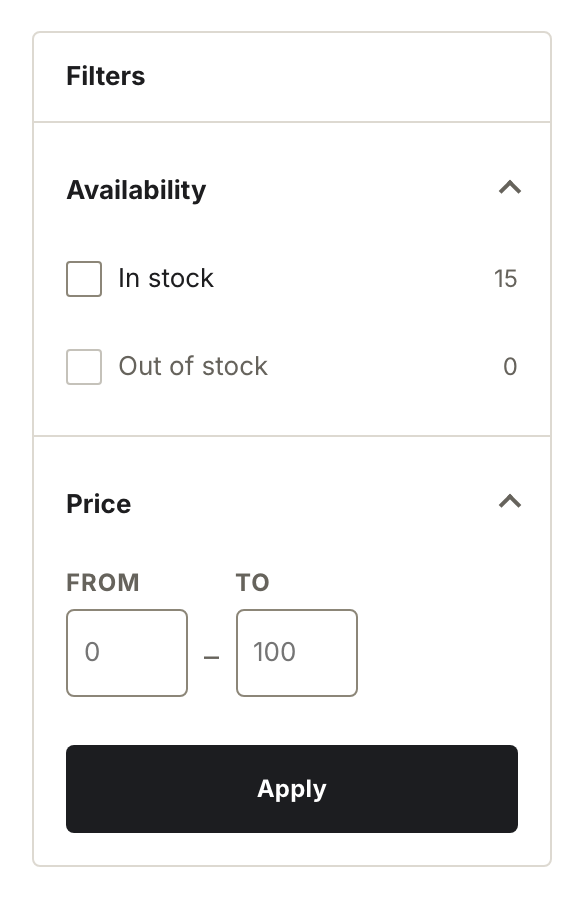
The filter panel on a collection page — theme editor, Collection section, Enable filtering.
Desktop panel and mobile drawer
On desktop the panel sits in a sticky sidebar to the left of the grid and stays open. On screens below 990px it collapses into a Filter and sort button that opens a drawer; the page behind it stops scrolling while the drawer is open. Inside the panel, Filters is the heading above the filter groups, with Clear all beside it.
Filter values render by type. A filter whose name contains "color" or "colour" shows as a grid of swatch dots — the test is a loose one, so "Colorway" and "Shell colour" become swatches too. Other list filters show as checkboxes with a result count. Price shows as From and To number fields. Values with no matching products are disabled.
Active filters and clearing
Applied filters appear as chips above the grid. Each chip removes that one filter when clicked. A Clear all link at the end of the row resets every filter at once.
Sorting keeps filters
The sort menu submits through the same form as the filters. Changing the sort order carries the active filters and the search term with it, so the result set stays narrowed. Clear all also keeps the current sort.
The rest of the Collection section
Enable filtering and Enable sorting sit alongside four settings that shape the page around the filters. All four are in the same Collection section.
| Setting | What it does |
|---|---|
| Products per page | 8 to 48 products before pagination kicks in. Default 24. |
| Desktop columns | 2 to 4 card columns on desktop. Default 3. Below 990px the grid drops to two columns and then one, whatever you set here. |
| Show collection image | Shows the image set on the collection in your Shopify admin as a banner above the title. On by default; a collection with no image shows nothing. |
| Show collection description | Shows the collection description under the title. On by default. |
Size order
Sizes sort the way you order their values in Search & Discovery, not alphabetically. To get S, M, L, XL instead of L, M, S, XL, open Search & Discovery → Filters, select the size filter, and drag its values into the order you want.