
Appearance
Product media gallery
The gallery shows every image, video, and 3D model on a product. A main stage sits beside a vertical thumbnail rail; clicking a thumbnail swaps the stage.
The thumbnail rail and the arrow controls appear only when a product has more than one media item. A single-image product shows just the stage.
Zoom and fullscreen
Hover an image on the stage and it magnifies under the cursor. Click it to open the fullscreen lightbox, which shows the original uncropped image at up to 2048px. Close the lightbox with its close button.
Note
The gallery crop is visual only. Zoom and the lightbox always open the full uncropped image, whatever ratio the stage is set to.
Image ratio
The stage crops to the ratio set on the Product section — Square, Portrait, or Landscape — with the image centered and any gaps filled by a neutral background rather than stretching. See Image ratios and cropping.
Video and 3D
Video, external video (YouTube and similar), and 3D models show a poster image with a play button on the stage, and a small play badge on their thumbnail. The player loads when the buyer presses play. Without JavaScript the poster still shows, so the gallery never renders blank.
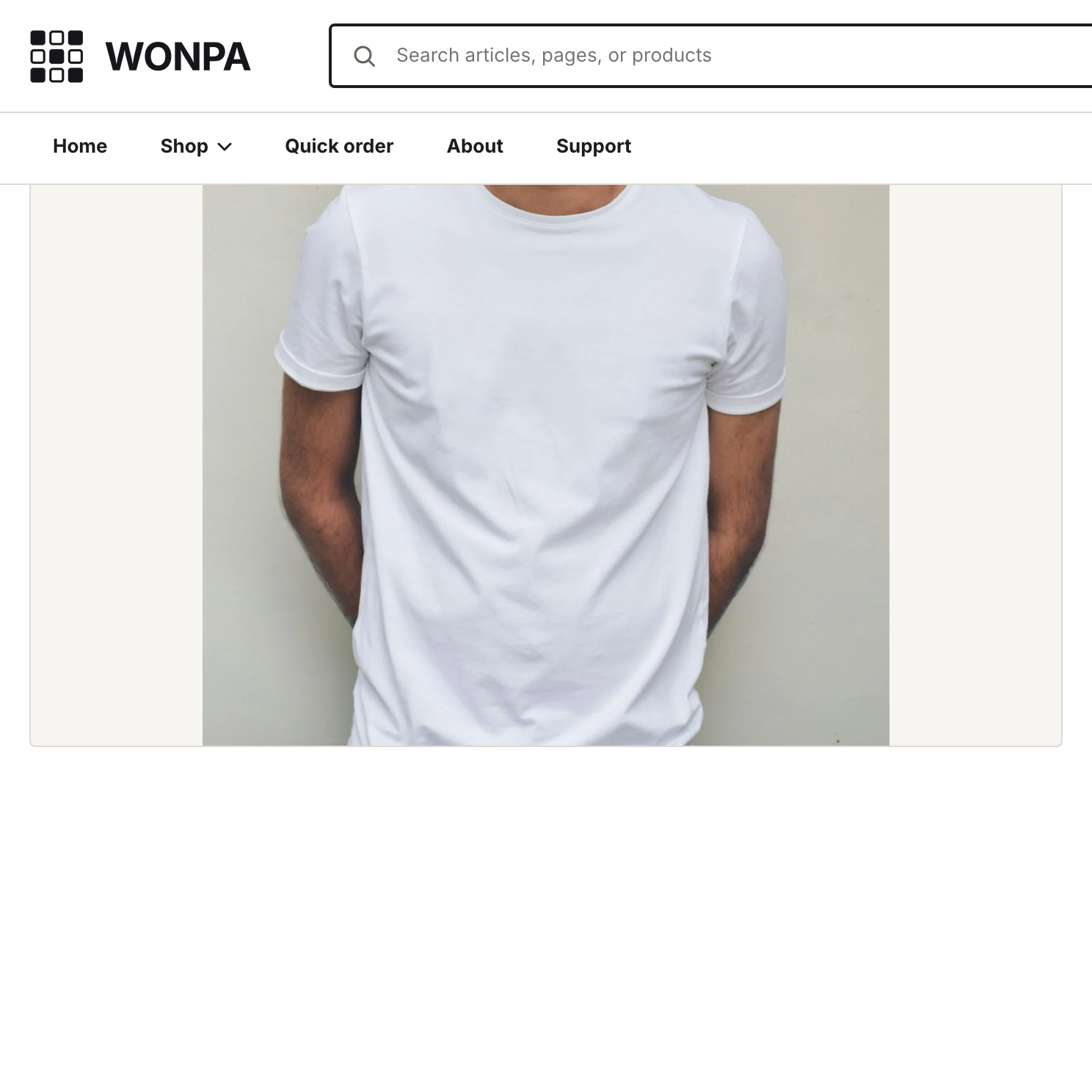
The main stage with its thumbnail rail.
Variant image swap
When a buyer picks a variant, the stage jumps to that variant's featured image. Assign a featured image to each variant in the Shopify admin, under the product's Variants section. A variant with no image assigned leaves the stage where it is.
Variant-scoped galleries
By default every media item stays visible for every variant. Turn on Show only the selected variant's images on the Product section to hide other variants' photos once a variant is picked.
The setting note reads: "Images assigned to other variants hide when a variant is selected. Unassigned images always show." So a shot assigned to the Blue variant hides when Red is selected, but a size chart or detail photo assigned to no variant stays in the gallery for all of them.
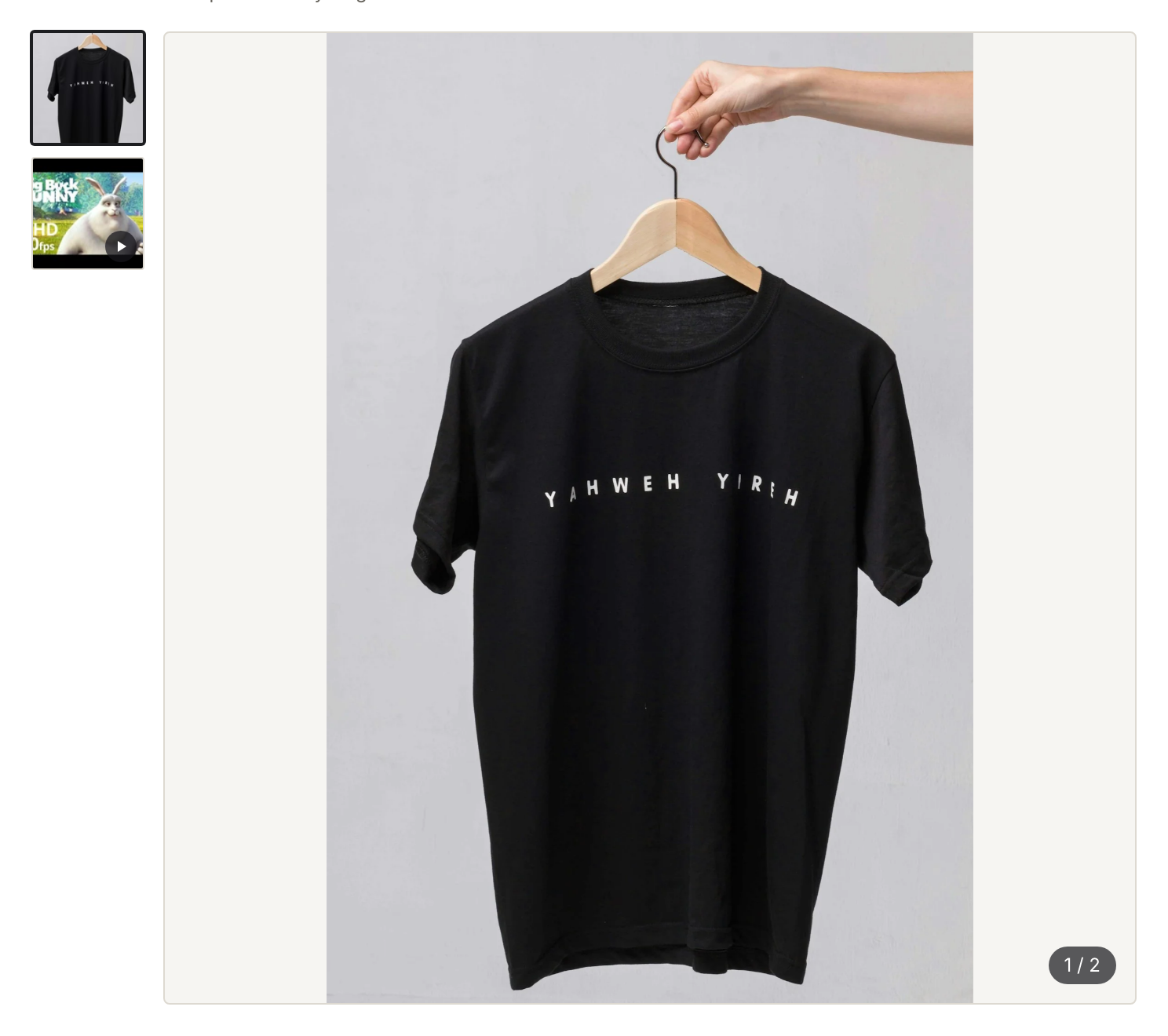
The gallery with variant filtering on, showing one color's images.
To make this work, assign each color's photos to its variant in the admin. Images left unassigned act as shared media and always show.