
Appearance
Footer
The dark band at the bottom of every page. A fixed brand column on the left, then up to five columns you add yourself, then a meta row with the country and language selectors, payment icons, copyright and policy links.
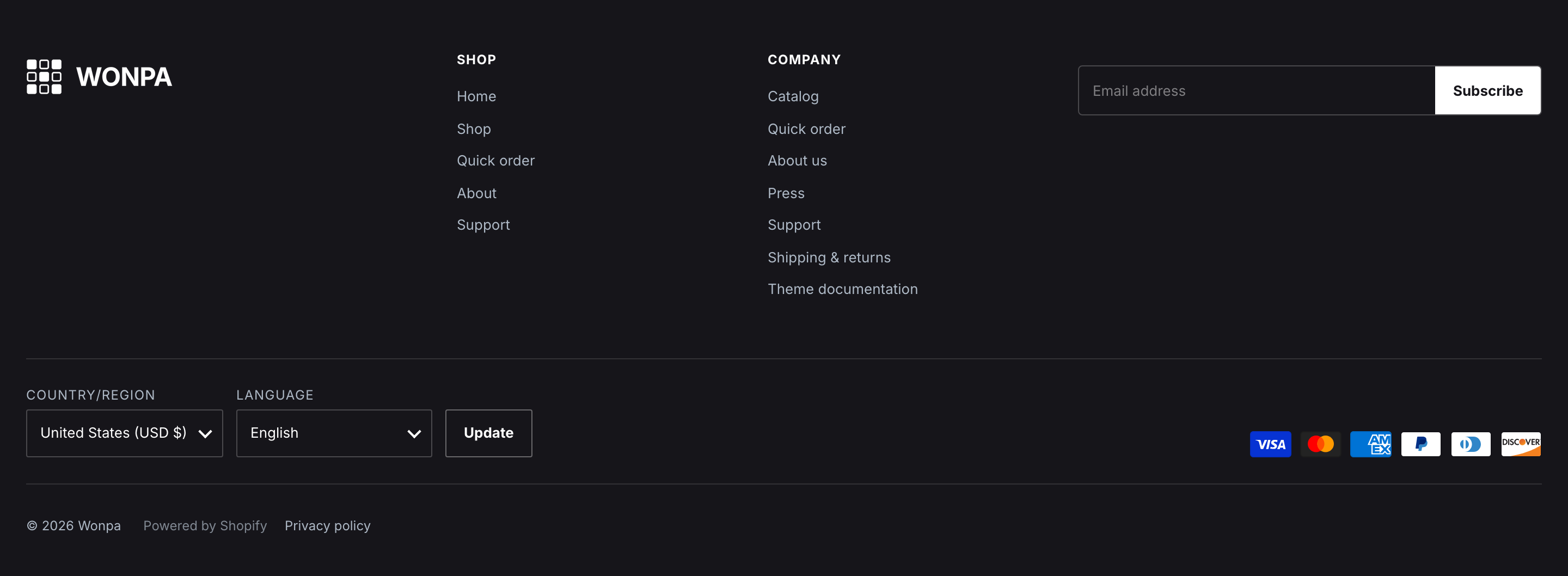
The footer as it ships: two link lists and a newsletter block.
Open Online Store → Themes → Customize, then open the Footer group at the bottom of the section list and select Footer inside it. Like any section in a group you can remove it and add it back, and every setting in it is optional.
The brand column
The logo comes from Footer logo if you set one. Leave it blank and the footer falls back to your main logo from Theme settings → Brand, and then to your shop name set in two-letter initials. Because the footer sits on a near-black background, upload a light or white version here rather than reusing a dark main logo.
Text below the logo takes rich text — a one-line positioning statement, a licence number, or a warehouse note.
Social icons appear in this column automatically from Theme settings → Social. They aren't footer settings: one set of URLs serves the whole theme. See Social links.
Columns
Add up to five blocks in any mix. They share the row with the brand column and reflow on narrow screens.
Link list points at a Shopify navigation menu. Set Heading for the column title and pick the menu under Menu. The theme prints whatever that menu contains, so add and reorder links in Content → Menus, not here. Only the menu's top level is printed — a footer column is a flat list, so any drop-down items nested under a link won't appear.
Text is a heading plus a rich-text body — return terms, lead times, a tax or registration number.
Newsletter is a heading, optional Subtext, and an email field. Submissions create a customer tagged newsletter, so you can segment on that tag in Shopify. Success and error messages render in place under the field.
The meta row
Show country/region selector and Show language selector each appear only when your store actually offers more than one — a single-market store shows neither, whatever these are set to. Add markets and languages in Shopify admin first; see Languages and currencies.
Show payment icons prints the payment methods your store has enabled. It hides itself when Shopify reports none.
The bottom line is built for you and has no settings: the year and your shop name, the Powered by Shopify link, and every policy you've published under Settings → Policies. Policies you leave empty don't appear.
Settings
| Setting | What it does |
|---|---|
| Footer logo | Light or white logo for the dark background. Falls back to the main logo, then the shop name. |
| Text | Rich text under the logo. Hides when blank. |
| Show country/region selector | Shows the market picker. Only renders when the store has more than one country. |
| Show language selector | Shows the language picker. Only renders when the store has more than one language. |
| Show payment icons | Shows enabled payment methods. Hides when the store has none. |
| Top padding | Space above the footer content, 0–96px. |
| Bottom padding | Space below it, 0–96px. |
Block settings
| Block | Settings |
|---|---|
| Link list | Heading, Menu — any Shopify navigation menu. |
| Text | Heading, Text (rich text). |
| Newsletter | Heading, Subtext. Subscribers are tagged newsletter. |