
Appearance
Size matrix ordering
Products with two options — typically color and size — replace the standard variant picker with an order grid. Buyers type quantities into each cell and add the whole size run to the cart in one step. Row and column totals update as they type, and the total always matches what the cart will charge: each size line is priced by its own quantity's volume break, and the summary bar shows the effective price per unit.
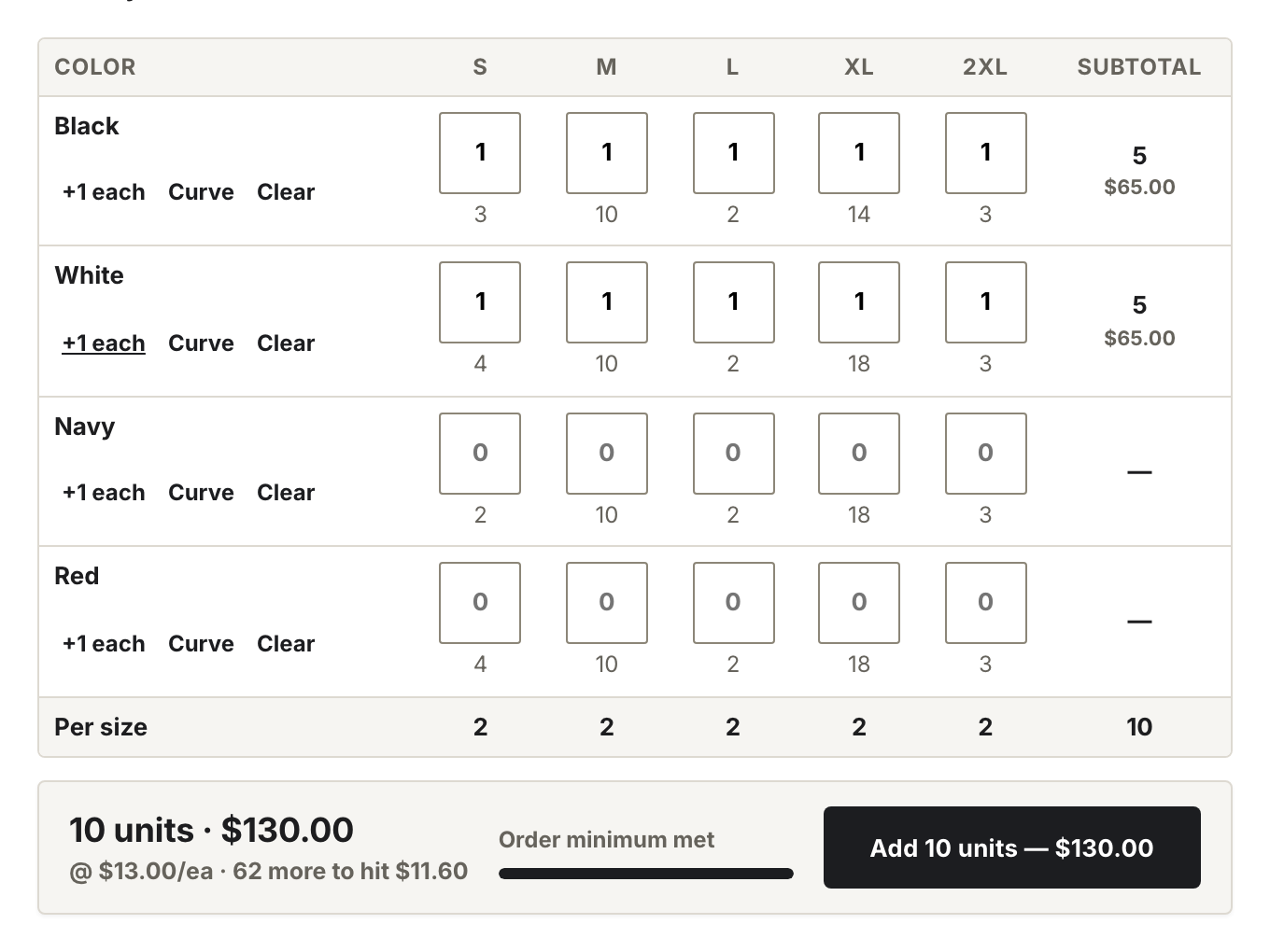
The matrix appears automatically. There is no setting to turn on: any product with exactly two options gets the grid, and products with one option (or none) keep the regular picker.
Before you start
Two options on the product is the only requirement for the grid itself — it renders for a guest and for a retail customer alike. What the grid prices against is Shopify's, and comes from two places:
- Quantity rules, for the order minimum the add-to-cart button waits on and the increment cells snap to. These are set on a catalog, and the buyer sees them only when a catalog carrying them is assigned to their company location. Without a rule, every cell falls back to a minimum of 1 and no increment. See setting up quantity rules and volume pricing in B2B.
- Volume pricing, for the per-line prices and the effective per-unit figure in the summary bar. Native price breaks likewise come from the buyer's catalog. See customizing B2B pricing using catalogs and Volume pricing tiers.
Both need the buyer signed in to the account attached to that company location, so a signed-out visitor gets the grid at plain retail prices unless you also gate it — see Login-gated wholesale pricing.
How buyers use it
Each color is a row. Under every row there are two text buttons:
- +1 each adds one unit to every size in the row.
- Clear empties the row.
A third button, Curve, appears only on products with a wonpa.curve metafield. It fills the row with the quantities that metafield lists, one per size column — the theme has no built-in curve of its own. Omit the metafield and the button doesn't render. See Product metafields.
The footer shows a per-size total, a grand total in units, and the order subtotal. The add-to-cart button stays disabled until the order meets the product's minimum.
Setting order minimums and case increments
The matrix reads quantity rules straight from Shopify — there is nothing to configure in the theme.
- In your Shopify admin, open Markets → Catalogs and select the catalog assigned to the buyer's company location.
- In the Products and pricing section, select Manage → Manage products and pricing, find the product, and set the quantity rule in the Quantity rules column: minimum, maximum, and increment.
- Save. The matrix now snaps typed quantities to the increment and won't allow adds below the minimum.
Note
Quantity rules ship with Shopify's B2B features. On stores without them, the matrix falls back to a minimum of 1 with no increment.
If a buyer types a quantity the rule doesn't allow, the cell snaps to the nearest valid value. When stock runs lower than what a buyer requests, the cell caps at what's actually available — counting what's already in their cart — and a notice appears explaining the cap.
Stock display
Cells for out-of-stock variants are disabled. When inventory tracking is on and overselling is off, the matrix caps each cell at the sellable quantity. Variants that allow overselling accept any quantity.
Gallery follows the row
When a buyer clicks into a row, the product gallery jumps to that color's image, if the variant has one assigned. Assign images to variants in the Shopify admin under the product's Variants section. With Show only the selected variant's images enabled, the gallery also hides other colors' photos — see Variant-scoped galleries.