
Appearance
Quick order page
The quick order page is a bulk-ordering workbench. A buyer searches for a product, picks a variant, sets a quantity, and repeats down a list of rows — then adds every row to the cart in one step. It suits reorders and large mixed baskets where clicking through product pages would be slow.
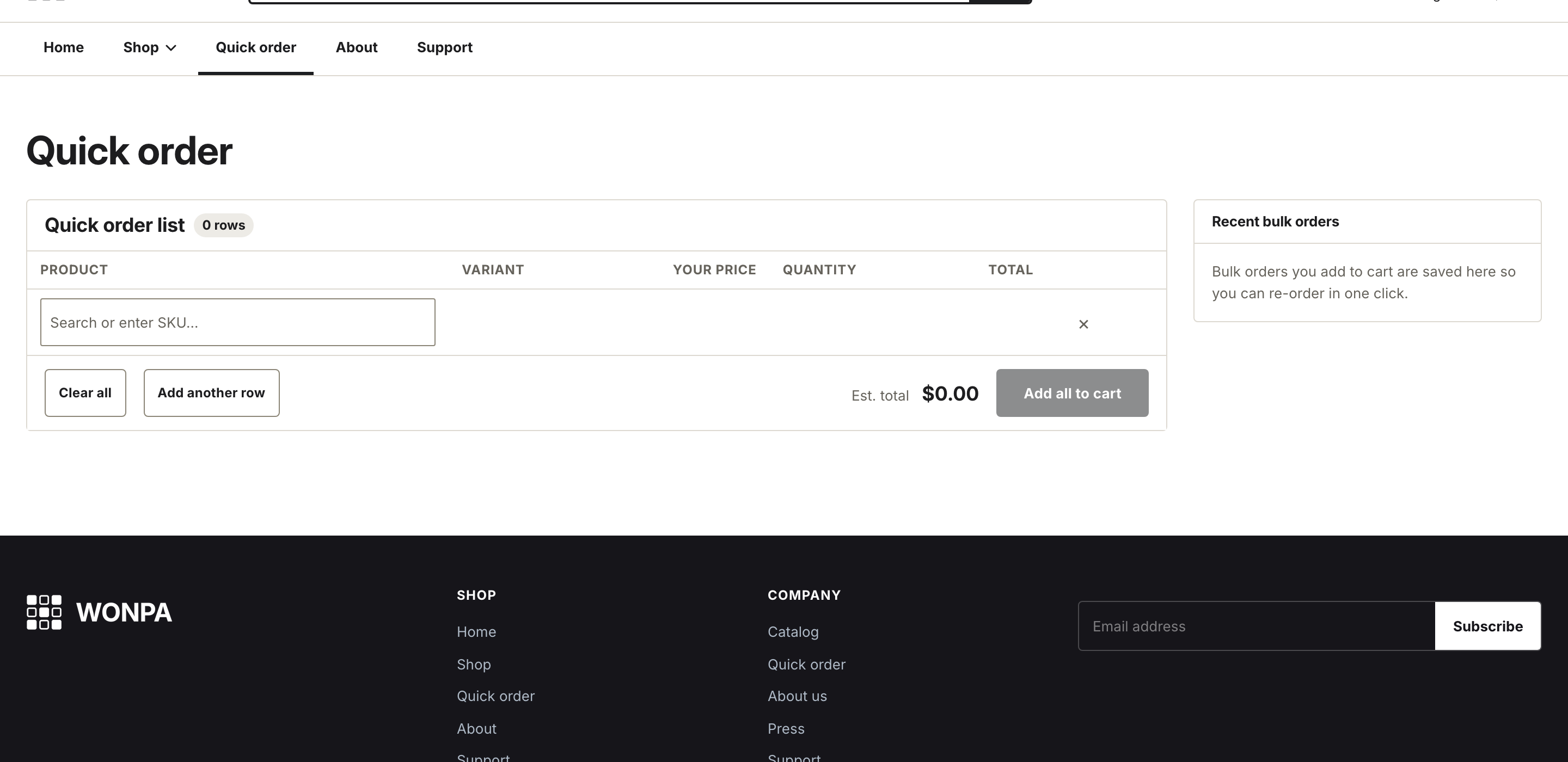
The page runs on the page.quick-order template. To create it, add a page in your Shopify admin under Online Store → Pages, then assign the quick-order template. Link to it from the header — Header → Show quick order link — or from any menu.
Before you start
The workbench shows whatever price Shopify would charge the signed-in buyer, so wholesale prices only appear once Shopify has the buyer's B2B setup in place:
- The buyer signs in through customer accounts, not legacy customer accounts. Legacy accounts cannot be used for B2B customers or orders, so a buyer signed in that way sees retail prices in the workbench. See sign-in and customer accounts in B2B.
- The buyer is a contact on a company location, and that location has a catalog assigned. The catalog is where Your price comes from. See customizing B2B pricing using catalogs.
- Volume pricing is entered on that catalog as quantity price breaks. See setting up quantity rules and volume pricing in B2B.
If the workbench shows a plain retail price where you expect a wholesale one, work through Why are my prices hidden — the same chain of checks applies.
How a row works
Each row is one search box that becomes a product line.
- Type a product name, style number, or SKU. Matches appear as you type.
- Pick a result. The row fills with the product name, thumbnail, and a variant menu.
- Choose a variant. Its price shows under Your price, and a quantity stepper appears.
- Set the quantity. The line total and the running Est. total update live.
Your price and the line total honor the variant's Shopify quantity price breaks at the entered quantity, so a row always shows what the cart will actually charge for it.
Note
The workbench reads Shopify's own price breaks only. It does not read the wonpa.tiers metafield that the size matrix can fall back on, so on a product priced that way the workbench shows the plain unit price while the matrix shows the tier price. The workbench is the one matching checkout: metafield tiers are display-only unless you also enforce them at checkout. See Volume pricing tiers for how that fallback works.
The page opens with one empty row. Filling it doesn't add the next one — select Add another row for each further line. Clear all empties the list; it asks for a second tap to confirm. When the list has at least one unit, Add all to cart sends every line to the cart in a single request.
Share an order for approval
Many wholesale orders are built by one person and signed off by another. Copy order link turns the filled rows into a link and puts it on the clipboard — send it to whoever approves the spend, and opening it lands them on a cart holding exactly those variants and quantities, ready to check out.
The button sits next to Add another row and enables as soon as the list has at least one unit.
Careful
Opening the link replaces whatever is in the recipient's cart — it doesn't merge. It's a snapshot of the rows at the moment it was copied, so later edits to the workbench don't change a link that's already been sent.
Note
Search matches by SKU as well as title, so buyers can key part numbers straight in. This uses Shopify's predictive search — no app required.
Quantity rules apply
The stepper reads each variant's quantity rule from Shopify: minimum, maximum, and increment. Typed values snap to the increment and can't go below the minimum. A hint under the field states the rule when one is set.
Rows for sold-out variants lock at zero and are skipped when you add all. If a variant is already in the cart, the row shows how many units are there.
Frequently purchased
Pick a collection under the section's Frequently purchased collection setting and set Products to show. Those products appear as cards below the list. Each card's Add to list button drops the product into the empty row at the bottom of the list, or adds a new row if that row is already filled. A card also shows how many units are already in the cart.
Recent bulk orders
After a buyer adds a list to the cart, that list is saved in their browser under Recent bulk orders. One click refills the workbench with the same products and quantities. Only the four most recent lists are kept — a fifth pushes the oldest one out. Nothing is stored on the server, so the rail is per-browser.
When prices are gated
With login-gated pricing on, a logged-out visitor has no prices to order against. The workbench is replaced by a sign-in prompt that reads "Sign in to order" and links to the account login page. Once the buyer signs in, the full workbench loads. See Login-gated wholesale pricing.
Without JavaScript the workbench can't run. In that case a short line points buyers to the catalog, so ordering from product pages still works.